 GoldFynch Documentation
Managed redaction stamps
A managed redaction stamp is a redaction stamp that is available throughout the entire case. A managed redaction stamp lets you maintain consistency in identifying redactions across the case, irrespective of the reviewer. These redaction stamps are created in the Case Settings view and can be created by anyone with a user role of User and above.
Creating redaction stamps
Step 1. Navigate to the Case Settings view by clicking on the icon in the left navigation panel
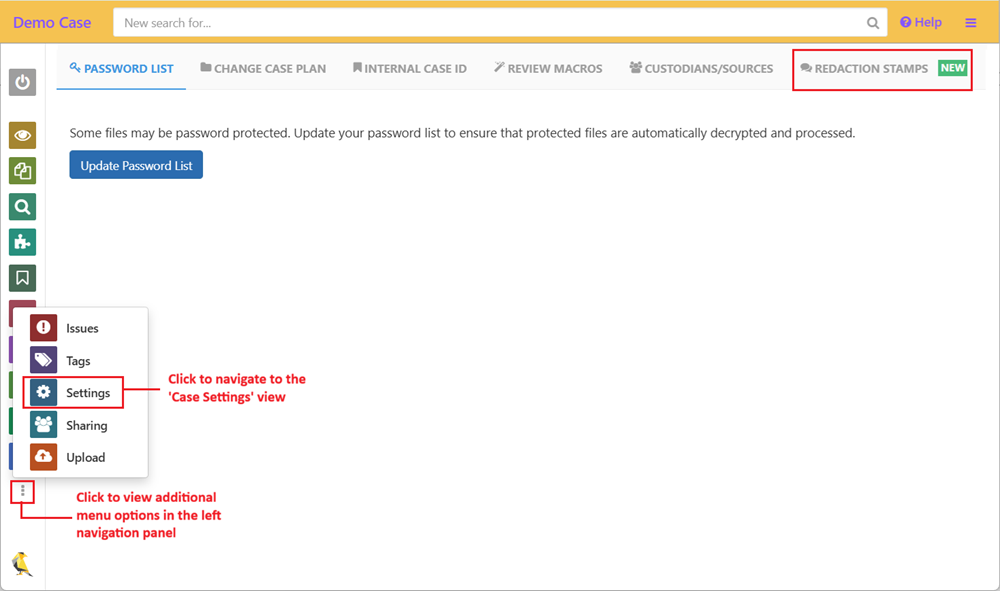
Step 2. Navigate to the Redaction Stamps tab

Step 3. Click on +New Redaction Stamp
Step 4. Enter a name for the redaction stamp
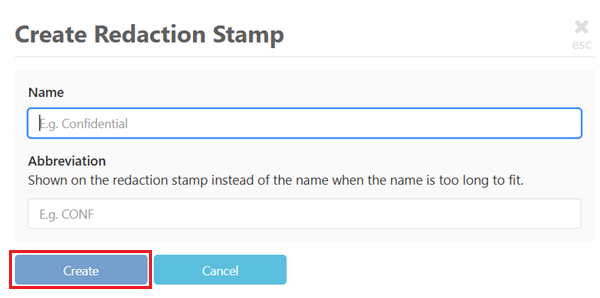
Step 5. Enter an abbreviation
Step 6. Click on Create
The newly created redaction stamp will be added to the list of managed redaction stamps for the case.
Editing redaction stamps
Step 1. Navigate to the Redaction Stamps tab of the Cases Settings view in your case
Step 2. Click on the edit icon(pencil) against the redaction stamp you want to edit

Step 3. Update the name, abbreviation, or both
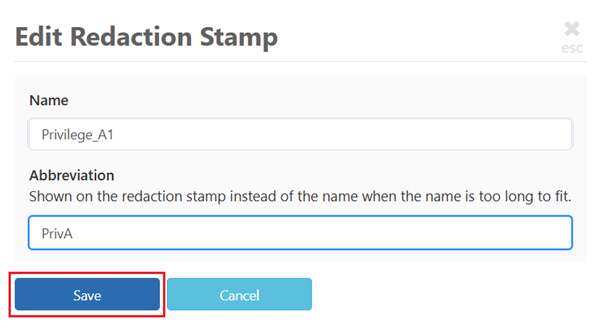
Step 4. Click on Save
Deleting redaction stamps
When deleting redaction stamps, you can delete stamps individually or many at one go from the Redaction Stamps tab of the Case Settings view
Deleting multiple redaction stamps
Step 1. Check the checkbox against the redaction stamps you want to delete
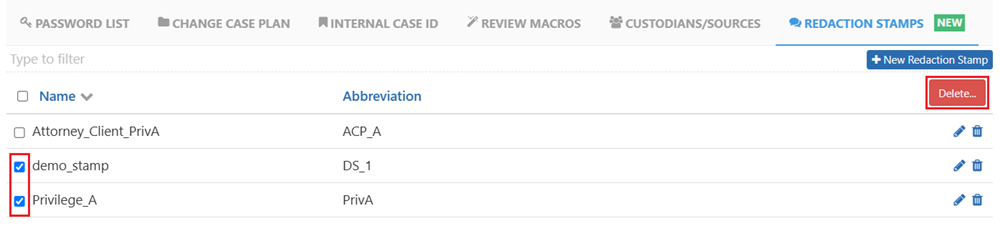
Step 2. Click on Delete in the top-right corner of the page
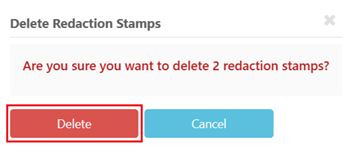
Step 3. Click on Delete to confirm
Deleting individual redaction stamps
Step 1. Click on the delete icon (trashcan) against the stamp you want to delete

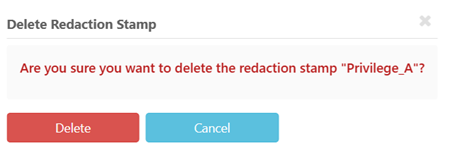
Step 2. Click on Delete to confirm
Learn more about adding redaction stamps and about Redactions in GoldFynch