 GoldFynch Documentation
Viewing App Activity Using the Audit Log
You can track and view app activity for the Organization, as well as all cases associated with the it, in the Audit Log.
Procedure to view app activity
- Navigate to the Organizations page by clicking on the menu option in the top-right corner of the GoldFynch app.
- Click on the
Managebutton against the Organization for which you want to view the app activity - Click the
Audit Logtab. By default, GoldFynch will display all the activity for the Organization and its associated cases over the last 24 hours.
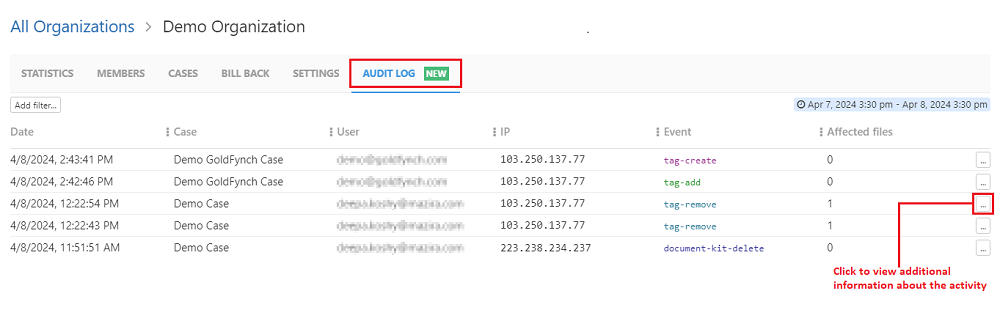
Note: The functions of the Organization level audit log are similar to those for individual cases. Click here to learn more about audit logs
In case you want to view the details of a particular event, you need to click on the ... button against the event.
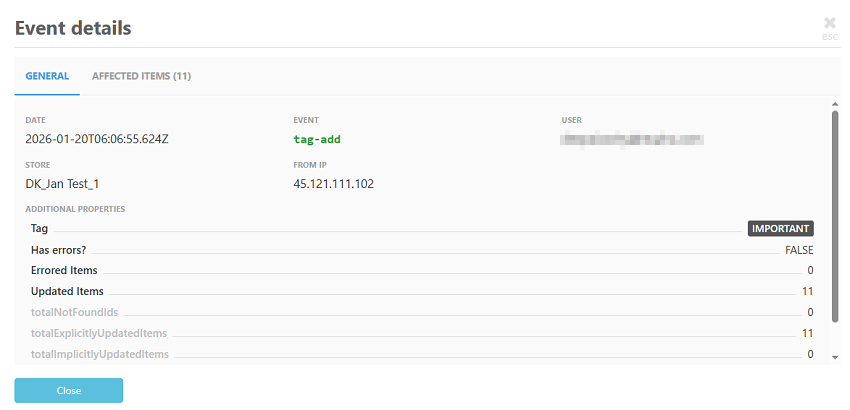
You can filter the transactions in the listing based on the fields:
- User - Enter the complete email ID of the user you want to filter by
- IP Address - Enter the complete IP Address you want to filter by
- Event - This refers to the action that has been performed, e.g., case-create, notes-add, tag-remove, move-items, etc.
- Item ID - This refers to the GoldFynch ID of the file, which you can obtain by opening the file in the Document Viewer
- Tag - You can select the tags you want to filter by from the list of available tags in the case
- Store - Using this, you can choose the case by which you want to filter the transactions
You can view up to one year's worth of transactions for your Organization in the audit log.
To change the date/time range, you need to click the date/time displayed at the top-right corner of the page.

GoldFynch will dsiplay a pop-up and from this, you can:
- Set a custom date range by selecting the corresponding start and end date/time.
-
Select a relative time from one of the listed options
- Last 24 hours
- Last week
- Last month
- Last 6 months
- Last year
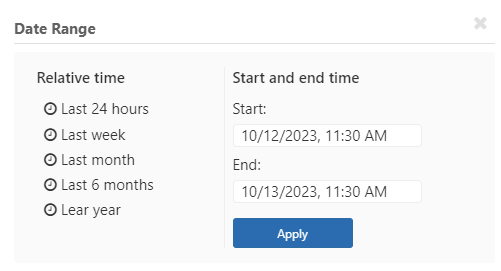
Click on the Apply button once you have made your selection. GoldFynch will then display the Organization activity for the selected period.
Note:
- In addition to the filters available for cases you can filter by store(case)
- You can also view Organization-level events only by checking the
Organization-level events onlycheckbox found above the activity listing
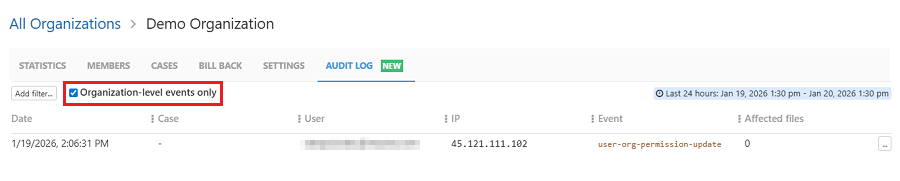
- Checking the
Organization-level events onlyfilter will display only Organization-level changes. If only case-level (store-level) changes have been made, this may result in an empty listing, as case-level changes are not counted as Organization-level events.